
1. Home
  2. Services
  3. Geo Mark
Attendance

Geo Mark

Mobile attendance that only works inside the right location.

Create attendance zones, assign employees to them and let staff check in from GotIt Mobile. The punch is accepted only when the employee is inside the zone and passes face verification.

  • Attendance zones
  • Zone allocation
  • Location check

Part of GotIt Mobile Web portal & GotIt Mobile

Geo Mark zone editor with a radius zone drawn on the map
How it works

Geo Mark in 4 steps

From first setup to everyday use.

  1. Step 1:

    Create a zone

    Add a business location and draw it as a radius or a custom polygon on the map.

  2. Step 2:

    Allocate people

    Assign employees to the zones where they are allowed to mark attendance.

  3. Step 3:

    Enroll faces

    Each employee completes a one-time face enrollment from their profile.

  4. Step 4:

    Check in on site

    In the app the location is checked against the zone and the face is verified before the punch is saved.

See it in action

Inside Geo Mark

Real screens from GotIt.

Add business location in GotIt
01

Draw zones on the map

Search for a place, choose radius or polygon and set the allowed accuracy so check-ins only count inside the right area.

  • Radius or polygon zones
  • Allowed accuracy in metres
  • Active or inactive per location
Geo Logs in GotIt
02

Every geo punch, with proof

Geo Logs shows who checked in, in which zone, the captured image, the face verification score and the time.

  • Zone and timestamp for each punch
  • Face verification score
  • Captured image for review
Face Enroll in GotIt
03

One-time face enrollment

Employees enroll their face by following on-screen prompts, so every later punch can be verified.

  • Guided head movement and blink check
  • Done once from the profile
  • Used by Geo Mark and Scan & Go
What you get

Everything included in Geo Mark

Attendance zones

Draw zones around offices, sites and client locations.

Zone allocation

Assign each employee to the zones where they are allowed to punch.

Location check

The punch is recorded only when the phone is inside an assigned zone.

Face verification

A selfie check confirms the right person is punching.

Review on doubt

Punches that look unusual are held for an admin to review.

Instant confirmation

The employee and admin can be notified the moment the punch lands.

Who uses it

Built for HR and for every employee

Admins and HR

  • Create zones and allocate employees
  • Review flagged mobile punches
  • See where each punch was made
  • Set the allowed accuracy radius per location
  • See the captured image and face score for each punch
Where Web portal

Employees

  • Check in from the phone at the work site
  • Verify with a quick selfie
  • See the punch in today's timeline
  • Enroll their face once from the profile
  • View past geo punches in My Logs
Where GotIt Mobile Web portal
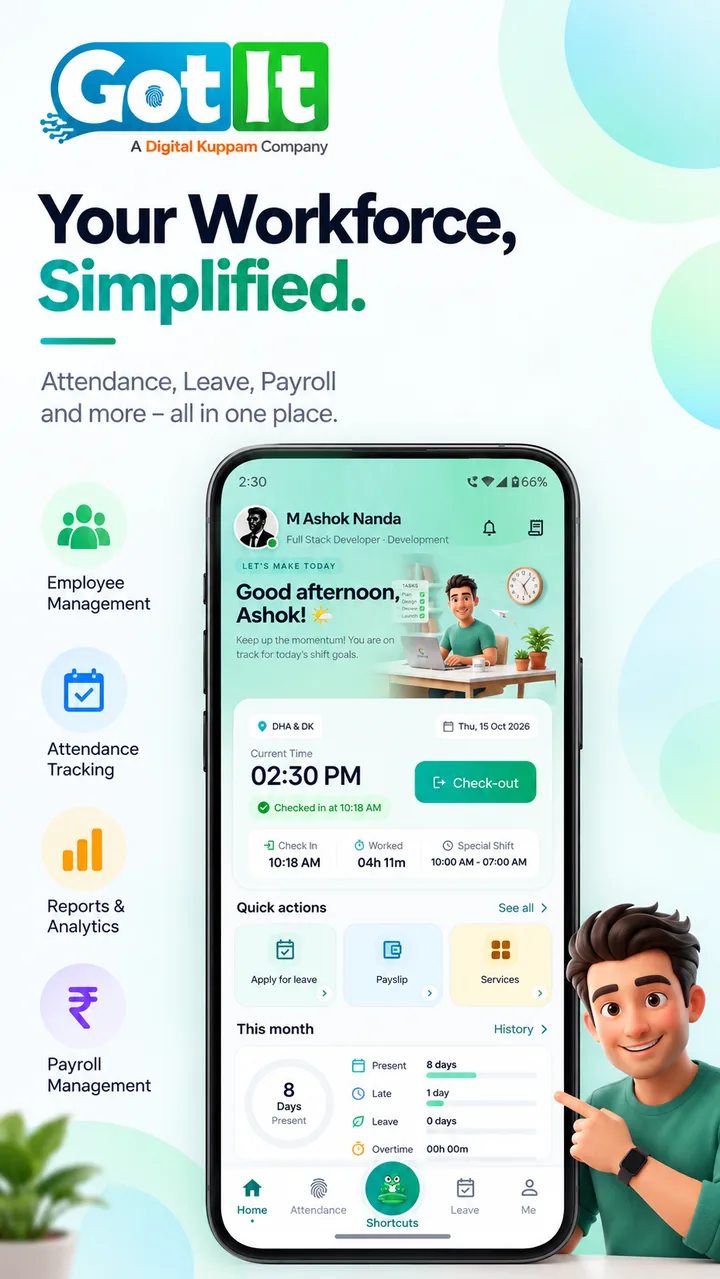
GotIt Mobile home screen with today's check-in
FAQ

Common questions

Can staff punch from home with Geo Mark?

Only if home is one of their assigned zones. Outside an assigned zone the punch is not accepted.

Is face verification required?

Geo Mark pairs the location check with facial verification so the right employee is recorded.

What zone shapes are supported?

Radius zones, a circle around a point, and polygon zones, a custom boundary drawn on the map.

Do employees need to enroll their face first?

Yes. A one-time face enrollment from the profile is needed before Geo Mark punches can be verified.

Can one employee work at several locations?

Yes. Allocate the employee to every zone where they are allowed to punch.

Related

Works well with

GotIt support team ready to help you get started

Ready to try Geo Mark with your team?

Start a 7-day free trial with every module, or book a demo and we will walk you through it.